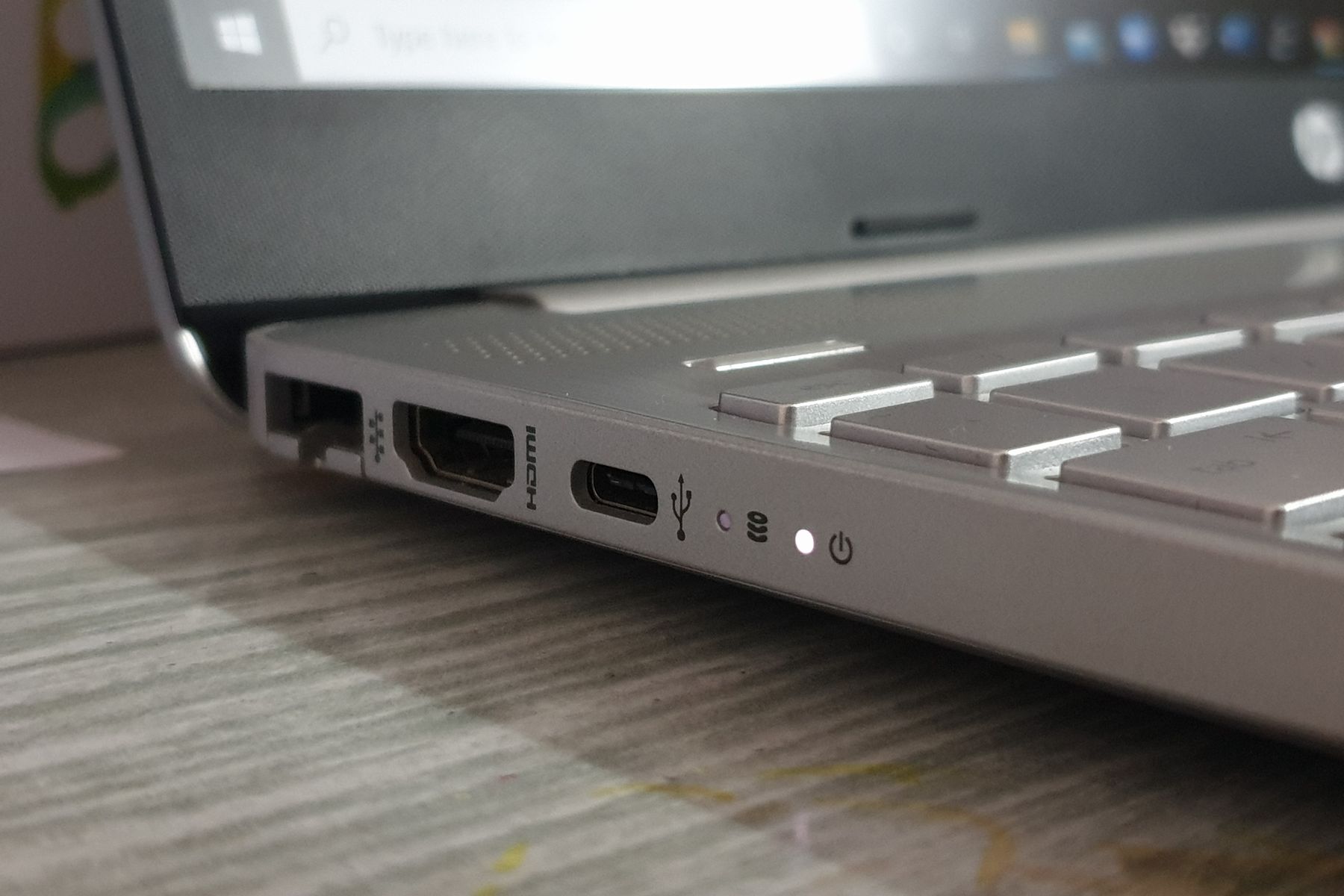
EU USB-C Rules After 2026
From April 2026, EU rules tighten how laptops and other small devices handle wired charging, with USB-C as the common port for many models. The practical goal is simple: fewer proprietary chargers, fewer “which cable works?” moments, and easier replacement when a charger breaks. The legal details depend on the final scope and implementation text, so readers should treat this as a verification checklist rather than a promise that every laptop on every shelf will behave the same.
In real life, the biggest friction usually comes from power delivery mismatches. A USB-C port can physically fit many cables, but charging speed depends on whether the charger and the laptop agree on wattage through USB Power Delivery (USB PD). If you buy a “USB-C charger” that tops out at 20 W, a laptop that expects 65 W may charge slowly or not at all under load. That mismatch often shows up after moving from a bundled 65–100 W brick to a smaller travel charger.
For a concrete example, a typical 14–16 inch laptop may ship with a 65 W or 100 W USB-C charger, while a phone charger might be 20–30 W. The port is the same shape, but the negotiated power profile differs. USB PD negotiation happens over the cable’s electronic signaling, not just the connector shell, which is why cable quality and charger ratings matter.
Common Pain Points And Misreads
People often assume “USB-C” automatically means “fast laptop charging.” That assumption fails when the charger supports only basic USB power modes rather than USB PD, or when the laptop requires a specific minimum wattage for stable charging while the CPU is under load. Another frequent misread is thinking that any USB-C cable is interchangeable for laptop power; many cables are charge-only or rated for lower current, and some are built for data transfer rather than high-watt charging.
Some buyers also conflate the charging port rule with the data port rule. Even when USB-C is mandated for charging, manufacturers may still vary how they route video output, docking, and data lanes. A USB-C port can support DisplayPort Alt Mode or Thunderbolt-class features on some models, while other models expose only USB 2.0/3.x data and charging. That difference affects docking compatibility, not just charging.
There is also a category problem: the EU framework targets “laptops” and other device groups, but the exact inclusion criteria can hinge on definitions like intended use, power class, and whether the device is considered a “portable computer.” If a product listing uses ambiguous wording, it can be unclear whether the rule applies to that specific model variant.
Finally, buyers sometimes ignore the “in the box” reality. Even if a laptop uses USB-C for charging, the package may not include a charger in some regions or promotions. In that case, the buyer must match wattage, connector type, and USB PD profiles from day one, which is where many returns start.
What To Check Before You Buy
Verify USB PD Wattage
Check the laptop’s published charger requirements in the product specifications, usually listed as “Input” wattage or “Charging” power. Then compare that to the charger you plan to use. For example, if the laptop specifies 65 W USB-C charging, a 45 W charger may work for light use but can throttle or stop charging during heavy workloads. A 100 W charger typically covers the requirement with headroom, though it may still negotiate down to the laptop’s supported profiles.
When you shop, look for explicit USB PD support and the wattage range on the charger label. A charger that only says “USB-C” without PD details often behaves like a phone charger. I’ve seen travel chargers labeled “USB-C PD” but with a single fixed profile; those can still charge laptops, just not at full speed. If the listing shows “PD 3.0” and multiple output modes, the odds improve.
Match Cable Ratings To Power
USB-C cables vary widely. For laptop charging, prioritize cables that explicitly support USB PD and higher wattage, and avoid “charge-only” cables that are marketed for phones. A practical rule is to use a cable rated for at least the laptop’s charger wattage, or one that lists a supported PD power level. Many cables also list maximum current (amps) and maximum power; those numbers are more informative than marketing names.
As a side observation from cable testing in consumer setups, a 1 m cable rated for 100 W tends to behave more predictably than a generic 2 m cable that lacks PD specs. Longer cables can introduce voltage drop, which can trigger slower charging or intermittent negotiation. If you frequently charge while using the laptop, voltage drop becomes more noticeable.
Confirm Dock And Video Support
If you use a docking station, confirm that the laptop’s USB-C port supports the dock’s required features. Charging-only support is not enough for docks that need DisplayPort Alt Mode or Thunderbolt-class data lanes. Product pages often list “USB-C with DisplayPort Alt Mode” or “Thunderbolt 4,” and those phrases map to different docking capabilities.
For a realistic check, compare the dock’s supported laptop ports list with the laptop model’s port feature list. If the dock documentation says it requires Thunderbolt, a laptop with only USB-C PD may charge but not provide the same video bandwidth. This mismatch is a common cause of “the dock powers but the monitor stays black,” which is frustrating because the charging part works.
Plan For Charger Replacement Scenarios
After April 2026, the port standard should reduce the number of proprietary bricks you need, but it does not remove the need to match wattage. Keep the original charger if it’s working, and buy a secondary charger only after you confirm the laptop’s required wattage and PD profiles. If you travel, consider carrying a charger that matches the laptop’s maximum charging requirement rather than a phone-sized brick.
Also check warranty and return terms. Some retailers treat charger compatibility as a buyer responsibility, especially when the laptop can charge at lower wattage but not at the advertised speed. If you want predictable behavior, test with the intended charger and cable within the return window.
Educational Case Examples
Scenario 1: A student buys a laptop advertised as “USB-C charging.” The bundled charger is 65 W. They replace it with a 30 W phone charger for dorm use. The laptop charges slowly and drains during gaming sessions. The fix is not changing the port; it is switching to a 65 W USB PD charger and a cable rated for that power level.
Scenario 2: An office replaces older chargers with a universal USB-C charger. Employees report that docking works on some laptops but not on others. One laptop model supports DisplayPort Alt Mode over USB-C, while another model routes video differently and requires a different dock or a different port. Charging works in both cases, so the root cause is dock feature support, not the USB-C connector itself.
USB-C Decision Checklist
| Check | What To Look For | Why It Matters | Pass/Fail Signal |
|---|---|---|---|
| Laptop Charging Spec | USB-C input wattage (e.g., 65 W, 90 W, 100 W) | Sets the minimum power for stable charging | Charger meets or exceeds wattage |
| Charger USB PD | USB Power Delivery support and output profiles | Negotiates power over the cable | Label lists PD and wattage modes |
| Cable Rating | Cable rated for high-watt PD charging | Prevents voltage drop and failed negotiation | Cable states max power/current |
| Dock Video Support | DisplayPort Alt Mode or Thunderbolt support | Determines monitor connectivity | Laptop port feature matches dock requirements |
Step-by-step checklist for a safe purchase: (1) read the laptop’s charging wattage requirement, (2) pick a USB PD charger with equal or higher wattage, (3) choose a cable rated for that wattage and a realistic length, (4) if you dock, confirm video support wording on both the laptop and dock pages, and (5) test within the return window using the exact charger and cable combination.
Common Mistakes To Avoid
Buying a charger based only on connector shape is the most common mistake. A USB-C port on the laptop does not guarantee the charger supports USB PD, and a cable that works for phone charging may fail for laptop wattage. Another mistake is assuming that “works sometimes” means the setup is correct; intermittent charging often indicates negotiation instability or voltage drop, which can worsen over time.
People also misread product listings that mention USB-C charging but omit wattage. If the listing does not state the laptop’s required input power, buyers end up guessing, and guessing tends to produce slow charging or battery drain under load. A mild frustration here is that many listings bury the charging spec in a PDF manual; searching for “Input” or “Power” in the manual usually finds it faster than scrolling.
Docking mistakes follow a different pattern. Buyers focus on charging and ignore the dock’s video requirements. If a dock expects DisplayPort Alt Mode and the laptop port does not support it, the dock may still power the laptop but not drive monitors. In one office setup I reviewed (firmware version noted as 1.2.3 on the dock), the monitor issue persisted until the team switched to a dock model that matched the laptop’s port feature set.
Finally, some buyers assume the EU rule removes the need to check compatibility. The rule reduces charger variety, but it does not standardize wattage, cable ratings, or docking features across all brands and models. Compatibility still depends on USB PD behavior and the laptop’s supported power profiles.
FAQ
Does Every Laptop Use USB-C After 2026?
Many laptops sold under the EU scope should use USB-C for wired charging, but the exact coverage depends on the device category and the final legal scope. Check the specific model’s charging port and the published charging specification.
Will Any USB-C Charger Work With My Laptop?
No. The charger must support USB Power Delivery and meet the laptop’s required wattage for stable charging, especially during heavy use. A phone charger often charges slowly or not under load.
Do I Need A Special USB-C Cable For Charging?
Yes for laptop charging. Use a cable rated for high-watt USB PD charging rather than a generic cable meant for data or phone charging. Cable ratings reduce the risk of voltage drop and failed negotiation.
Will A USB-C Dock Work After The Port Change?
Charging can work while docking fails if the laptop port lacks the dock’s required video/data features. Confirm whether the laptop supports DisplayPort Alt Mode or Thunderbolt-class capabilities and match that to the dock.
Where Can I Find The Laptop’s Charging Wattage?
Look in the laptop’s official specifications or the user manual for “input power,” “charging power,” or “adapter wattage.” If the site lists multiple configurations, check the exact model and configuration you plan to buy.
Author's Insight
EU charger rules aim to reduce proprietary charging connectors, but the day-to-day user experience depends on USB Power Delivery negotiation, cable ratings, and the laptop’s supported power profiles. Those technical factors explain why two USB-C chargers can behave differently on the same laptop. When you plan purchases, treat the connector as only one part of the compatibility chain.
For practical verification, read the laptop’s published charging wattage and confirm the charger and cable list USB PD with matching power. If you use a dock, verify video support wording rather than assuming “USB-C equals monitor.” I also recommend keeping a short note of the exact charger model and firmware or dock model you tested, since small differences can change behavior.
Key Takeaways
- EU laptop charging rules after April 2026 push many devices toward USB-C, but compatibility still depends on USB PD wattage and cable ratings.
- Match the charger’s USB PD support and wattage to the laptop’s published charging requirement, not just the connector shape.
- Use a cable rated for high-watt charging to reduce voltage drop and negotiation problems.
- For docks, confirm video/data feature support on both the laptop and the dock; charging success does not guarantee monitor output.