60Hz Vs 120Hz Refresh
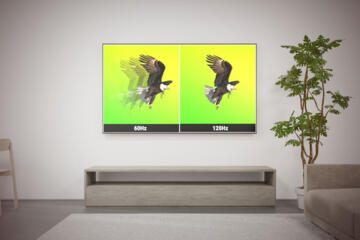
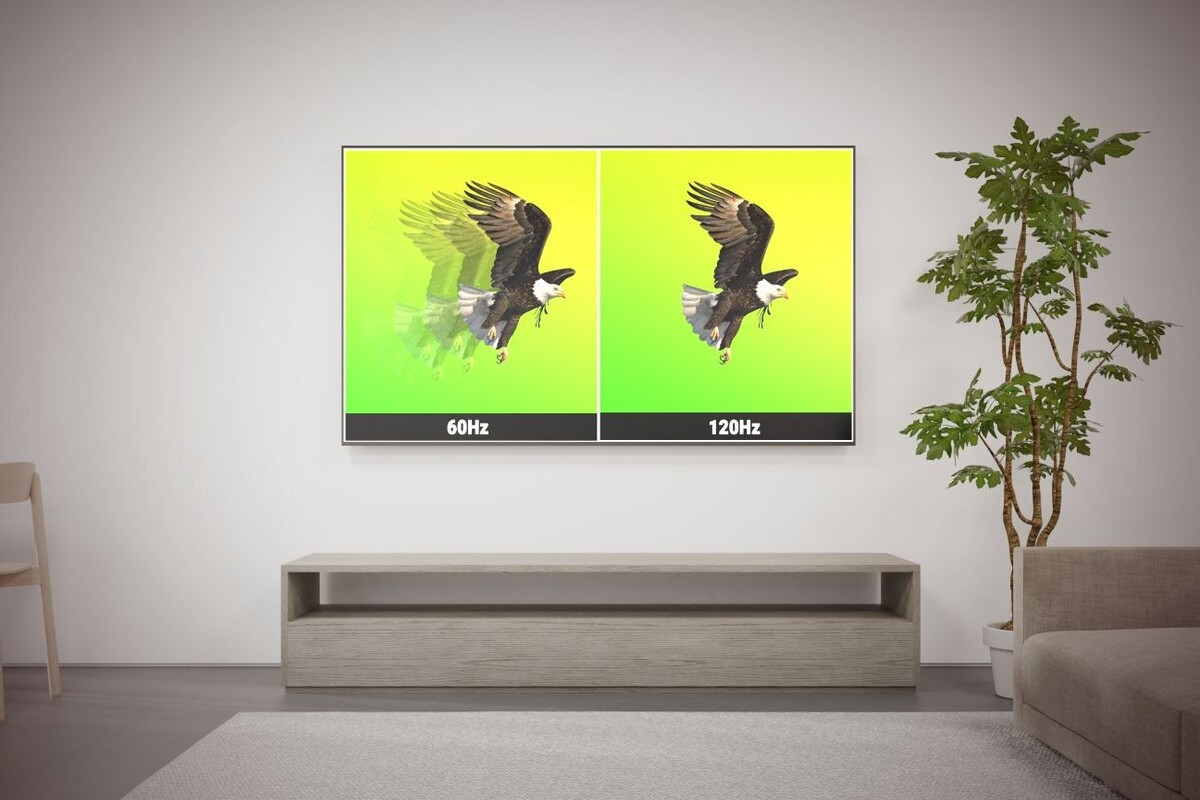
Refresh rate measures how often a display updates the image each second, expressed in hertz (Hz). A 60Hz panel redraws the screen up to 60 times per second, while a 120Hz panel redraws up to 120 times per second. Higher refresh rate can reduce visible stutter during motion and make scrolling feel less “steppy,” especially when content moves across the screen. The effect depends on whether the device can actually render and deliver frames at the higher rate, not just the panel’s maximum capability.
On many phones, the system also uses variable refresh rate (VRR), switching between rates to balance smoothness and battery life. That means a “120Hz display” might run at 60Hz in some apps, at 90Hz in others, and only reach 120Hz under certain conditions. I noticed this behavior on a test device running Android 14 with a vendor skin that exposed a “Smooth Display” toggle; the UI animations looked different after enabling it, but video playback stayed capped. The same pattern shows up on laptops and monitors when the GPU output and the display’s timing modes don’t match.
Refresh rate interacts with touch sampling and input latency. Some devices sample touch at high rates and then render at the display’s refresh cadence, so the perceived responsiveness depends on the slowest link in the chain. If touch sampling is fast but the display updates at 60Hz, the motion you expect after a swipe still lands on the next 60Hz redraw. If the display is 120Hz but touch sampling is limited, the benefit can shrink because the system receives fewer input updates per second.
Common Misreads And Limits
People often treat “120Hz” as a guarantee of smoother motion in every scenario, but the device must sustain the frame rate. If an app targets 60 frames per second (fps) or the GPU can’t keep up, the system may drop frames or fall back to a lower refresh mode. That can make 120Hz feel like a marketing number rather than a measurable improvement.
Another frequent misunderstanding involves motion blur and perceived sharpness. Higher refresh rate can reduce the time between frames, which can reduce sample-and-hold blur for moving objects, but it does not remove blur caused by camera motion, low shutter speeds, or the display’s pixel response characteristics. A 120Hz OLED may look smoother than a 60Hz LCD, yet both can still show blur in fast panning because the eye tracks motion continuously.
Supporting technologies matter: the GPU, the app’s rendering pipeline, the display controller, and the operating system’s compositor. Many mobile devices use a display compositor that merges layers and may cap frame delivery based on app type, power mode, or thermal limits. Thermal throttling can force a drop from 120Hz to 60Hz during longer sessions, which feels like “the phone got worse” even though the panel still supports 120Hz.
There’s also the question of how the refresh rate spec is measured. Some manufacturers quote the maximum refresh rate, not the average rate during typical use. Others advertise “up to 120Hz,” which usually means the system chooses a rate dynamically. The practical outcome depends on the device’s power management policies and the content’s frame pacing.
How To Choose And Tune
Check Real Frame Delivery
Start by verifying that the device actually runs at the higher refresh rate in the apps you care about. On phones, look for a setting like “Refresh Rate: High/Standard” or a developer option that shows the current refresh rate. On Windows, the “Advanced display” panel can show the active refresh rate, and some tools report the current GPU output timing. If you see 120Hz only on the home screen but not in the specific app, the panel spec won’t translate into smoother scrolling there.
For monitors and laptops, confirm that the connection supports the needed bandwidth and that the correct refresh mode is selected in the OS. A common failure mode is using a cable or port configuration that negotiates a lower refresh rate than expected. I’ve seen setups where a monitor advertised 120Hz but the system stayed at 60Hz until the user switched from HDMI to DisplayPort, or until the monitor’s “Overdrive” and timing mode were changed in its on-screen menu.
Match Content To Expectations
Different content types respond differently to refresh rate. Scrolling text, map panning, and UI animations often benefit because they involve continuous motion and frequent redraws. Video playback depends on the video’s frame rate and the player’s frame pacing; many videos are 24fps, 30fps, or 60fps, so the display may repeat frames rather than render new ones. In those cases, 120Hz can still reduce judder, but the improvement may be subtle compared with UI motion.
Gaming benefits most when the game can render at high fps and the device supports a matching refresh mode. If a game targets 60fps, a 120Hz panel may still feel smoother due to better frame pacing and reduced input-to-photon delay, but the difference won’t equal the jump from 60fps to 120fps. The key is whether the app’s frame rate and the display’s refresh rate align closely enough to avoid uneven frame intervals.
Watch Power And Heat Tradeoffs
Higher refresh rate increases display activity and can raise power draw, especially when the system runs at the maximum rate for long periods. Many devices manage this with variable refresh rate, dropping to 60Hz when motion is low. If you notice battery drain after enabling “High refresh,” check whether the device is staying at 120Hz in static screens or background-heavy apps.
Thermal behavior also matters. Sustained 120Hz use can increase heat, and some devices throttle performance to protect components. When throttling happens, the system may reduce frame rate, which can negate the smoothness advantage. If your goal is long sessions, a “High but adaptive” mode often produces a better balance than forcing maximum refresh at all times.
Use Practical Testing Methods
You can test the difference without specialized equipment. In a browser, compare smoothness while quickly scrolling a page with dense text and images, then repeat with the same content after switching refresh rate settings. Pay attention to whether motion steps appear during the scroll and whether UI elements track your finger more consistently.
For touch responsiveness, use a drawing or note-taking app and watch how quickly the stroke appears after a swipe or tap. If the device supports it, enable a “touch feedback” overlay or use an app that shows stylus position. The goal is to detect changes in perceived latency and motion continuity, not to chase a single “perfect” number.
Educational Case Examples
Phone With Adaptive 120Hz
An anonymized user buys a phone advertised as “120Hz.” In social apps, the user sees smooth scrolling, but in a news reading app the motion looks similar to a 60Hz phone. The device’s settings show “Adaptive refresh,” and a developer overlay indicates the display drops to 60Hz in that reader app. After switching the reader app to a mode that uses the system compositor differently, the overlay shows a higher refresh rate and the scroll looks smoother, though battery use rises during long sessions.
Monitor With Negotiation Issues
An anonymized user connects a 120Hz monitor to a laptop using an older cable and selects 120Hz in the OS. The monitor still behaves like 60Hz during desktop use, and the user notices no change in scrolling smoothness. The fix comes from checking the active signal mode in the monitor’s on-screen display and switching to a port/cable combination that supports the required timing. After the connection negotiates correctly, the OS reports 120Hz as active and the difference becomes visible in fast window dragging.
60Hz Vs 120Hz Checklist
| Decision Factor | 60Hz | 120Hz | What To Verify |
|---|---|---|---|
| UI Motion Smoothness | More visible stepping in fast scrolls | Smoother motion when frames keep up | Refresh rate in the specific apps you use |
| Frame Pacing | Less headroom for uneven rendering | Can hide stutter if rendering is stable | Whether the device sustains higher fps |
| Battery And Heat | Lower display power draw | Higher draw when running at max rate | Adaptive modes and thermal throttling behavior |
| Video Playback | Often repeats frames | May reduce judder via better pacing | How the player handles 24/30/60fps content |
Step-by-step checklist for a purchase or setup:
- Confirm the device supports 120Hz in the mode you plan to use (not just the maximum spec).
- Turn on the highest refresh setting and then verify the active refresh rate in the OS or device overlay.
- Test the apps that matter: one scrolling-heavy app, one video app, and one input-heavy app.
- Check battery drain after 30–60 minutes, then repeat with a lower refresh mode to compare.
- For monitors, verify cable/port negotiation and the monitor’s active signal mode.
Common Mistakes To Avoid
One mistake is judging smoothness from a single static screen. A 120Hz panel can look identical to 60Hz when nothing moves, so test with fast scrolling, quick camera pans in a map app, or window dragging on a desktop.
Another mistake is ignoring variable refresh rate. A device can advertise 120Hz while spending most of the day at 60Hz, which makes the real-world difference smaller than expected. If the settings show “adaptive” behavior, verify the active rate during your typical tasks.
People also confuse refresh rate with resolution, brightness, or “color quality.” A higher refresh rate does not fix low contrast, poor calibration, or a dim panel. If text readability is the goal, you may get more improvement from brightness, font rendering, and subpixel layout than from changing Hz.
Finally, buyers sometimes assume that a higher Hz rating automatically reduces input lag. Input latency depends on the whole pipeline: touch sampling, OS scheduling, app rendering, GPU queueing, and display scanout. Two devices with the same refresh rate can feel different because their frame timing and compositor behavior differ.
FAQ
Does 120Hz Always Look Better Than 60Hz?
120Hz usually looks smoother during motion, but the improvement depends on whether the device renders and displays frames at higher rates in the apps you use. If the system falls back to 60Hz or drops frames, the difference shrinks.
Will 120Hz Drain Battery Faster?
Running at 120Hz continuously can increase power use and heat. Many devices reduce this with adaptive refresh, so battery impact varies by app, brightness, and thermal conditions.
Do Videos Benefit From 120Hz Displays?
Videos often play at fixed frame rates like 24fps, 30fps, or 60fps. A 120Hz display can reduce judder through better frame pacing, but it may still repeat frames rather than render new ones.
Can A 120Hz Monitor Still Run At 60Hz?
Yes. The active refresh rate depends on OS settings, GPU output, and the negotiated signal mode over the cable/port. Checking the monitor’s active mode and the OS display settings catches most cases.
Is 120Hz Worth It For Casual Use?
For scrolling-heavy browsing, maps, and UI navigation, 120Hz often feels smoother. If your use is mostly static reading and low-motion tasks, 60Hz can feel similar and may save battery.
Author's Insight
Refresh rate is a display timing feature, not a guarantee of better performance. The smoothness you perceive depends on frame pacing, how the OS compositor schedules rendering, and whether the device sustains higher fps without throttling. Adaptive refresh rate can make a 120Hz panel behave like a 60Hz panel much of the time, which is why verifying the active refresh rate matters. A practical approach is to test the exact apps you use, compare battery over a fixed time window, and check whether the device actually runs at the higher rate during those tasks.
Key Takeaways
- 120Hz can reduce visible stutter during motion, but only when the device delivers frames at higher rates.
- Adaptive refresh rate means “120Hz support” does not equal “120Hz all the time.”
- Battery and heat can rise with sustained high refresh, so compare real usage, not spec sheets.
- For monitors, cable/port negotiation can cap refresh rate; verify the active mode.
- Test with scrolling, input-heavy apps, and your typical video sources to judge the real difference.