USB-C Cable Watt Ratings
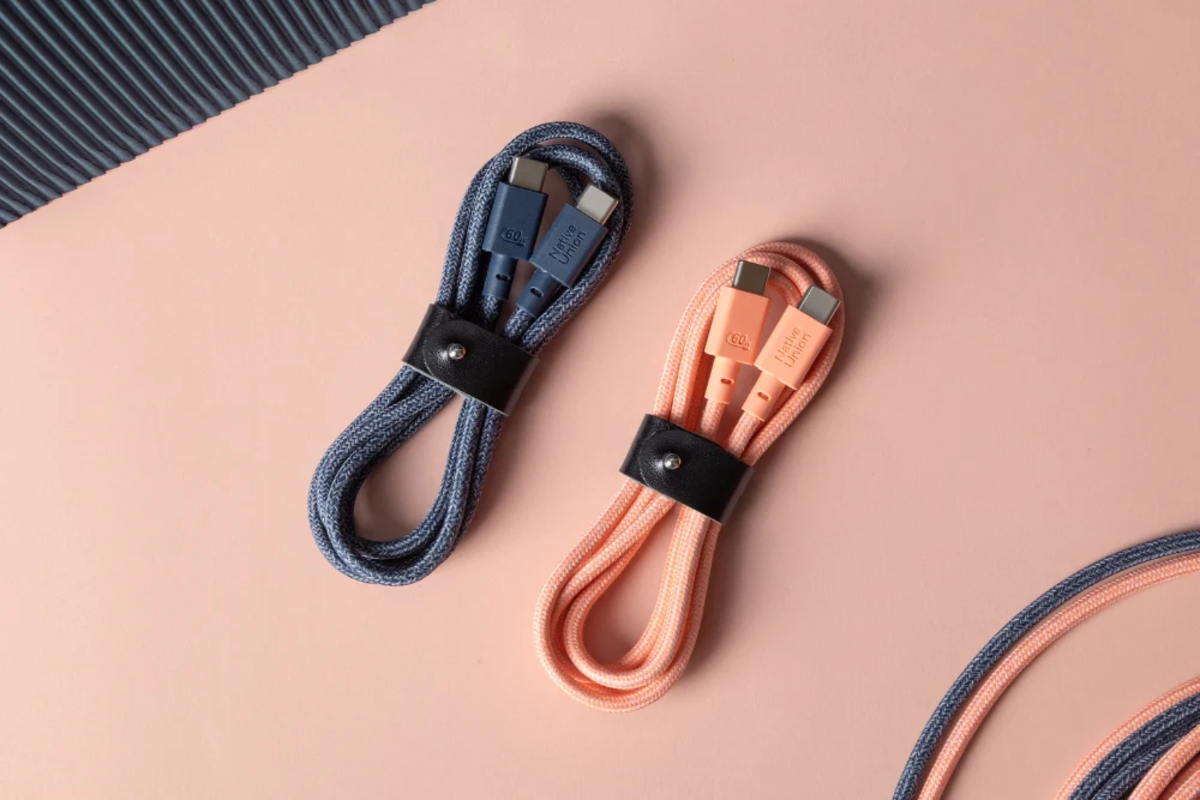
USB-C is a connector shape, not a power level. The “60W,” “100W,” and “240W” labels refer to the maximum power a cable is designed to carry under specific USB Power Delivery (USB PD) conditions. In practice, your charger and device negotiate a power profile, and the cable must be able to handle the negotiated current without excessive voltage drop or heat. A cable rated for higher wattage can still deliver less power if the charger or device requests less. A lower-rated cable can cap charging speed or trigger protection behavior, which often looks like slow charging or a disconnect-reconnect loop.
For example, a laptop that supports USB PD charging may request 65W or 100W, while a phone may request 18W or 27W. If you use a cable rated below what the laptop requests, the laptop may fall back to a lower profile, or the charger may refuse to maintain the negotiated level. Cable quality also matters: two cables both labeled “100W” can behave differently because of conductor gauge, insulation, and how well the cable meets USB PD electrical requirements.
One small detail that helps: many USB-C cables list “E-Marker” support for higher power. That marker is part of the USB Type-C specification for identifying cable capabilities. On my desk, a USB-C cable labeled “100W” with an E-Marker printed near the plug behaved normally with a 100W USB PD charger, while a cheaper “100W” cable without clear E-Marker markings ran noticeably warm and capped at a lower profile.
What People Get Wrong
People often assume the cable alone determines charging speed. USB PD negotiation happens between the charger (source) and the device (sink), and the cable acts as the link that must survive the negotiated current. If the charger and device agree on a high power profile, the cable still has to pass the current safely; if it cannot, the system may throttle or shut down.
Another common misunderstanding is treating “240W” as a guarantee that any device will charge at 240W. Most phones and many laptops never request that level. “240W” typically targets scenarios like high-power laptop charging and docking setups where the charger can negotiate up to that ceiling. In many real cases, the negotiated power is far lower, so the cable rating mainly affects whether the cable can handle the worst-case current without overheating.
Compatibility issues also come from standards beyond wattage. USB PD versions and profiles define what power levels are available, and some devices use proprietary fast-charging modes over USB-C that still rely on USB-C signaling. If a cable has poor data-line integrity, a device may still charge but fail to negotiate the intended profile, or it may disable video/data features. This is why a “charge-only” cable can sometimes charge slowly or not at all for laptops that expect full USB-C signaling.
Finally, cable labels can be inconsistent. Some listings describe “max power” without stating the USB PD profile, E-Marker status, or whether the rating assumes a specific cable length. Longer cables increase resistance, which increases voltage drop and heat. A 100W cable that works at 0.5 m may not behave the same at 2 m, even if both are marketed as “100W.”
How USB PD Negotiates Power
USB Power Delivery uses communication over the USB-C pins to negotiate a power contract. The charger advertises available power profiles, the device requests one, and the system checks whether the cable can support the required current. For higher power, the Type-C specification uses an E-Marker chip to identify cable capability; without it, the system may limit power or refuse higher profiles.
In practical terms, a 60W cable often supports common laptop charging profiles like 20V at 3A (60W). A 100W cable is designed for higher current profiles such as 20V at 5A (100W). A 240W cable targets very high current scenarios used by some laptop chargers and docks, often involving 48V or other higher-voltage profiles to reduce current for the same wattage. The exact profiles depend on the USB PD version and the device’s supported capabilities.
Because negotiation is dynamic, the same cable can behave differently across devices. A cable that handles a 100W laptop profile may still deliver only 15W to a phone, and it may deliver 60W to a different laptop that requests less. That negotiation behavior is why you should match cable rating to the maximum power your device can request, not to what you hope it will request.
Solutions And Practical Advice
Match Cable Rating To Device
Start with the device’s maximum USB-C charging power, usually printed on the charger brick label or in the device manual. If a laptop charger is rated 100W, choose a cable rated for at least 100W and ideally with clear E-Marker support. If the laptop requests 65W, a 60W cable may work in some cases but can run close to the limit; a 100W-rated cable reduces the chance of throttling. For phone charging, 60W-rated cables are usually more than enough, since phones rarely request anywhere near 60W.
As a quick sanity check, look for the “Output” ratings on the charger and compare them to the cable’s stated capability. If a cable listing only says “supports fast charging” without stating wattage or USB PD support, treat it as uncertain. I’ve seen listings where “100W” appears in a title but the technical details omit E-Marker information, which is where things get messy.
Verify E-Marker And PD Support
For 100W and especially 240W-class use, prioritize cables that explicitly mention E-Marker support and USB PD compliance. E-Marker is not a marketing term; it’s a Type-C mechanism that helps the system decide whether higher current is safe. If a cable is short and well-built but lacks clear E-Marker details, the charger may still negotiate a lower profile, which looks like “slow charging” even though the charger is capable.
When you buy, check the cable length too. Many manufacturers specify performance assumptions for a given length, and longer cables can increase resistance. If you need a longer run, consider a higher-rated cable so the voltage drop stays within acceptable limits for the negotiated profile.
Use The Right Charger With The Cable
Power delivery depends on the charger’s advertised profiles. A 240W-rated cable cannot create 240W charging if the charger only supports lower USB PD profiles. Conversely, a high-watt charger paired with a lower-rated cable can trigger throttling or safety shutdowns. If you have a laptop dock, confirm the dock’s USB PD output rating per port, since some docks split power across multiple downstream devices.
One practical method: after connecting, check the device’s charging status screen for the negotiated wattage. Some laptops show “Charging (65W)” or similar details. If your laptop shows a lower number than expected, the cable or dock port may be limiting the negotiation.
Manage Heat And Cable Condition
Higher power charging increases heat in the cable and connectors. If a cable becomes noticeably hot to the touch during sustained charging, stop using it for high-power sessions and switch to a better-rated cable. Heat can also degrade insulation over time, which increases resistance and worsens voltage drop. Frayed strain relief or loose plugs are red flags, even for cables that still “work.”
For long sessions like laptop charging while using a monitor, choose a cable with good strain relief and avoid tight bends near the connector. I once measured a higher-than-normal temperature rise on a cable that had been repeatedly bent at the same spot; the laptop still charged, but the negotiated profile dropped after a while, which felt like the system backing off.
Case Examples
Scenario 1: 100W Laptop With a 60W Cable. A user connects a laptop that ships with a 100W USB-C charger to a 60W-rated cable. The laptop charges, but battery percentage rises slowly and the charging indicator shows a lower wattage than expected. The user replaces the cable with a 100W-rated USB PD cable with clear E-Marker support. The negotiated charging profile returns to the expected level, and the laptop maintains performance without frequent throttling.
Scenario 2: Dock Setup With Mixed Devices. A user runs a laptop through a USB-C dock that supports high-power charging. The dock’s documentation states a maximum per-port output, and the user connects a phone and a laptop simultaneously. With a cable that is only rated for 60W, the laptop charging caps while the phone still charges normally. Switching to a 100W-rated cable restores the laptop’s negotiated charging level, while the phone continues to charge at its own negotiated power.
Comparison Table And Checklist
| Cable Rating | Typical Use Cases | What It Can Limit | What To Check |
|---|---|---|---|
| 60W | Phone/tablet charging; some laptops requesting 20V/3A | Caps charging for laptops requesting 65W+; may throttle under load | USB PD support; adequate length; no “charge-only” limitation if data is needed |
| 100W | Common laptop charging; many docks | May still limit if a device requests above 100W | E-Marker support; verify dock port output rating |
| 240W | High-power laptop chargers/docks; higher-current profiles | Only helps if charger and device negotiate high profiles; otherwise power stays lower | Explicit USB PD compliance; E-Marker; confirm device max request and charger capability |
Step-by-step checklist:
- Find the maximum USB-C charging power your device requests (often shown in manual or charger label).
- Check the charger output rating and whether it supports USB PD profiles that match the device.
- Choose a cable rated at or above the device’s maximum request, with clear E-Marker support for 100W+ use.
- Match cable length to your setup; longer runs increase resistance and heat.
- After connecting, verify the negotiated charging wattage in the device UI when available.
- If heat is excessive or charging caps under load, replace the cable and avoid repeated high-power sessions on the suspect cable.
Common Mistakes
Buying a cable based only on the highest number on the listing leads to mismatches. A “240W” cable still needs to be compatible with the charger and device negotiation, and it still must meet the electrical requirements for the specific cable length and current. If the charger never offers high-power profiles, the cable rating does not change the outcome.
Using a cable that is “charge-only” for a laptop dock can cause missing video, missing USB peripherals, or reduced charging behavior. USB-C includes both power and data signaling, and some low-cost cables omit data lines. If your setup needs display output or USB peripherals, choose a cable that explicitly supports the data features you need, not just power.
Ignoring connector wear is another practical issue. Repeatedly plugging and unplugging a cable with a loose fit can increase contact resistance, which raises heat and can trigger throttling. If the plug feels wobbly, the cable may still charge but at lower negotiated power.
Finally, assuming that “works at first” means “safe for sustained use” can backfire. Heat buildup is cumulative, and a cable that warms quickly during a 10-minute test may behave worse over an hour. If your device shows a lower charging wattage after a short period, the system may be backing off due to voltage drop or thermal limits.
FAQ
Does A 60W Cable Charge A 100W Laptop?
It can charge, but it often caps at a lower negotiated profile or throttles under load. The laptop and charger negotiate power, and the cable must support the requested current without excessive voltage drop.
What Does “E-Marker” Mean On USB-C Cables?
E-Marker is a Type-C mechanism that identifies cable capability for higher-power USB PD. For 100W and 240W-class use, clear E-Marker support reduces the chance of the charger limiting power.
Will A 240W Cable Make Charging Faster?
It can only help if the charger and device negotiate higher power profiles. Many devices request far less than 240W, so the negotiated wattage stays limited by the device and charger.
Why Does My Laptop Show Lower Charging Watts?
Common causes include a cable rated below the requested power, a dock port with a lower per-port limit, a longer cable causing voltage drop, or a cable that lacks full USB-C data signaling needed for proper negotiation.
Can A Higher-Watt Cable Run Cooler?
Often it can, because a higher-rated cable typically uses conductors designed for higher current with lower resistance. Heat still depends on negotiated power, cable length, and connector condition.
Author's Insight
USB-C cable wattage labels map to cable electrical capability, but charging speed depends on USB Power Delivery negotiation between charger and device. E-Marker support becomes more relevant as power levels rise, because the system needs a reliable way to judge whether the cable can carry the negotiated current. Cable length and connector wear can shift real-world behavior even when the printed wattage matches. For decision-making, the most reliable approach is to match the cable rating to the device’s maximum USB-C charging request and verify the negotiated wattage in the device UI when that information is available.
Key Takeaways
- USB-C cable wattage is a ceiling for what the cable can carry; the charger and device decide the actual negotiated power.
- 60W often covers phones and some laptops; 100W fits many laptop and dock charging needs; 240W targets high-power laptop scenarios.
- For 100W+ use, look for clear E-Marker support and confirm the dock port’s per-port power limits.
- Check negotiated charging wattage on the device when possible, and replace cables that run unusually hot or cap power under load.