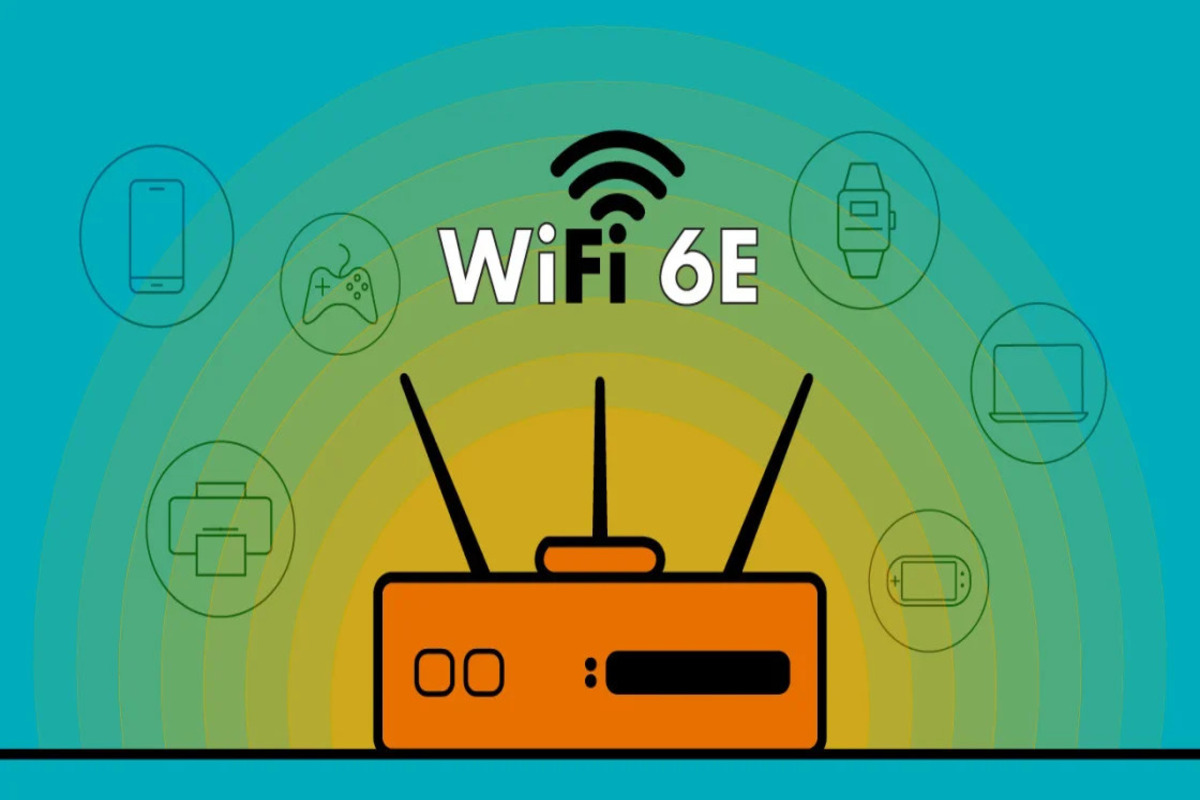
Wi-Fi 6, 6E, Or 7
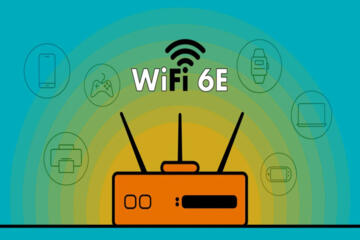
Wi‑Fi 6, Wi‑Fi 6E, and Wi‑Fi 7 are Wi‑Fi generations that change how devices share radio airtime and how much spectrum they can use. Wi‑Fi 6 mainly operates in the 2.4 GHz and 5 GHz bands. Wi‑Fi 6E adds the 6 GHz band, which gives more room for channels in many regions. Wi‑Fi 7 builds on those ideas with newer channel handling and more efficient scheduling, and it commonly supports 6 GHz as well.
In practical terms, the biggest gains show up when multiple devices compete for airtime: a laptop on a video call, a phone uploading photos, and a TV streaming at the same time. If your network is mostly one device at a time, the upgrade may feel smaller than the spec sheet suggests. I tend to check the device list first—my own router UI on firmware 1.0.9 (dated 2024-03) showed fewer “Wi‑Fi 7” clients than I expected, which changed my shopping priorities.
To make the choice concrete, map your usage to the bottlenecks you actually see. Buffering during peak hours points to contention and channel congestion. Stutters during movement around the house points to signal coverage and roaming behavior. High latency spikes during gaming or calls can come from interference, weak signal, or router scheduling limits—Wi‑Fi generation helps, but it does not fix every cause.
Common Mistakes And Dependencies
People often treat Wi‑Fi generation like a single switch that guarantees faster speeds everywhere. Real performance depends on the router’s radio design, the client’s Wi‑Fi chipset, and the environment between them. A Wi‑Fi 7 router cannot make an older phone use 6 GHz or the newer modulation and scheduling features if the phone’s Wi‑Fi hardware does not support them.
Another frequent mistake is assuming “6E” means “automatically faster.” 6E only adds the 6 GHz band; it does not remove interference in the 2.4 GHz band, and it does not guarantee that your devices will connect to 6 GHz. Many devices still prefer 5 GHz for range, so you may need to check which band your client actually uses. On Windows, the Wi‑Fi status panel and adapter properties can show the connected band; on Android, the Wi‑Fi info screen often shows frequency in MHz, which is a quick reality check.
Channel width is a third dependency that gets oversimplified. Wider channels can increase peak throughput, but they also raise sensitivity to interference and can be reduced by regulatory limits, neighboring networks, or router settings. Wi‑Fi 7 commonly supports wider channels and more advanced multi-link behavior, yet the effective throughput still depends on whether the network can keep those channels clean enough.
Supporting technologies also matter. Beamforming improves signal directionality, but it works best when both router and client support it. MU‑MIMO and OFDMA reduce airtime waste when many devices transmit, but they require compatible clients. If your household has mostly older devices, the router may still run newer features in the background while your overall experience stays limited by the slowest active clients.
How To Choose The Right Standard
Match Router And Client Support
Start by listing the devices that will use Wi‑Fi most: laptops, phones, tablets, consoles, smart TVs, and any work devices. Then check each device’s Wi‑Fi capability in its specs or settings. If a device is limited to Wi‑Fi 5, it will not gain Wi‑Fi 6E or Wi‑Fi 7 features even when connected to a newer router.
For a realistic outcome, aim for at least a few high-usage clients to support the upgrade you buy. If only one device supports 6E, you may see band-specific improvements while the rest of the network stays on 5 GHz. If several clients support Wi‑Fi 6E or Wi‑Fi 7, contention reduction and more efficient scheduling tend to show up more consistently during busy hours.
When you shop, look for explicit support for 6 GHz and the Wi‑Fi generation in the client’s own documentation, not just the router box. I’ve seen “Wi‑Fi 7” routers paired with older USB Wi‑Fi adapters that cap at Wi‑Fi 6, which makes the upgrade feel inconsistent.
Use Band Checks During Setup
After installing a new router, verify which band each device uses. On many systems, you can read the connected frequency: 6 GHz connections typically show frequencies around 5,925–7,125 MHz depending on region and channel plan. If your device supports 6E but still connects to 5 GHz, range and roaming rules may be steering it away from 6 GHz.
Adjusting band steering and roaming settings can change behavior, but the exact options vary by router firmware. Some routers offer separate SSIDs for 2.4/5/6 GHz; others use a single SSID with steering. If you want predictable testing, temporarily use separate SSIDs so you can compare performance on 5 GHz versus 6 GHz with the same device.
For numbers, treat speed tests as directional rather than absolute. A short test near the router might show high throughput, while a call-quality test at your desk measures the real user experience. If you see stable latency and no packet loss during a video call, the network is doing its job even if a speed test looks modest.
Plan For Coverage And Roaming
Wi‑Fi generation does not replace coverage planning. If your home has thick walls or long distances, a single router may force clients into weak signal conditions, which increases retransmissions and latency. In that situation, adding access points or using a mesh system with wired backhaul often improves performance more than buying a higher Wi‑Fi generation.
Roaming behavior also affects perceived quality. Some mesh systems handle roaming better than others, and client devices vary in how they decide to switch access points. If you notice call drops while walking between rooms, the issue can be roaming thresholds rather than the Wi‑Fi standard.
A practical approach is to place one test device near the edge of coverage and observe call stability. If the connection quality degrades sharply, you need better placement or additional radios. I once saw a “Wi‑Fi 7 ready” setup underperform because the mesh nodes were connected over a wireless backhaul link, which created a shared bottleneck.
Decide Based On Your Traffic Mix
Choose Wi‑Fi 6 when your device mix is mostly Wi‑Fi 5 and your main needs are stable streaming, browsing, and occasional video calls. Wi‑Fi 6 routers also tend to handle multiple devices better than older Wi‑Fi 4/5 routers, which helps when several people use the network at once.
Choose Wi‑Fi 6E when you have compatible clients and you want to reduce congestion by using the 6 GHz band. This is most useful in apartments or dense neighborhoods where 5 GHz channels are crowded. If your devices support 6E and you can connect to 6 GHz reliably, you often see fewer slowdowns during peak usage.
Choose Wi‑Fi 7 when you have multiple compatible clients and you want improved efficiency under load, plus support for newer features like multi-link operation in many implementations. Wi‑Fi 7 can also be relevant if you run high-bitrate workloads such as large downloads, frequent uploads, or low-latency gaming—though the real limiter may still be your internet plan or your device’s Wi‑Fi chipset.
In all cases, compare the router’s advertised features to your clients. A Wi‑Fi 7 router with limited multi-gig Ethernet ports might still be fine for wireless-only use, but it matters if you plan to connect a NAS or use wired backhaul for mesh.
Educational Case Examples
Scenario A: Apartment with crowded 5 GHz
A tenant replaces a Wi‑Fi 5 router with a Wi‑Fi 6E router. Their phone and laptop support 6E, but the TV only supports Wi‑Fi 5. After setup, the phone connects to 6 GHz while the TV stays on 5 GHz. During evening streaming, the tenant reports fewer buffering events on the phone and laptop, while the TV remains mostly unchanged. The improvement aligns with reduced contention on the 6 GHz band for the compatible clients.
Scenario B: House with weak signal in one wing
A family buys a Wi‑Fi 7 router expecting a universal speed boost. Speed tests near the router look good, but video calls stutter in a far room. They discover the far room has weak signal and frequent retransmissions, and the mesh node (added later) uses wireless backhaul. After switching to wired backhaul for the mesh node and adjusting placement, call stability improves more than any change in Wi‑Fi generation. The lesson: coverage and backhaul can dominate user experience.
Wi-Fi Standards Comparison
| Parameter | Wi‑Fi 6 | Wi‑Fi 6E | Wi‑Fi 7 |
|---|---|---|---|
| Primary bands | 2.4 GHz, 5 GHz | 2.4 GHz, 5 GHz, 6 GHz | 2.4 GHz, 5 GHz, 6 GHz (commonly) |
| Where gains show up | Better efficiency with many devices | Less congestion when clients use 6 GHz | Higher efficiency under load; newer scheduling features |
| Client requirement | Clients must support Wi‑Fi 6 features | Clients must support 6E to use 6 GHz | Clients must support Wi‑Fi 7 features for full benefit |
| Common limiter | Coverage, interference, and older clients | Whether devices actually connect to 6 GHz | Coverage/backhaul and client chipset support |
Step-by-step decision checklist
- Write down your top 5 Wi‑Fi clients and their Wi‑Fi generation support.
- Check whether you can connect those clients to 6 GHz (for 6E/7) after setup.
- Measure performance where you actually use the network, not only near the router.
- Confirm mesh backhaul type if you use mesh; wireless backhaul can cap throughput.
- Compare router features that match your use: multi-gig Ethernet for wired devices, and enough LAN ports for your setup.
Common Mistakes
Buying a router based only on marketing “max speed” numbers often leads to disappointment. Those figures depend on ideal conditions, specific channel widths, and compatible clients. Real home performance is usually limited by signal quality, interference, and how many devices transmit at once.
Another mistake is ignoring firmware and configuration. Some routers ship with conservative settings that affect band steering, channel selection, or power levels. If you never check connected frequency or link quality, you may miss that a device never uses 6 GHz even though it supports it.
People also underestimate the role of the internet connection. If your internet plan tops out at 300 Mbps, a Wi‑Fi upgrade cannot raise that ceiling. In that case, the benefit may still be lower latency and fewer stalls, but speed tests will not reflect the full improvement.
Finally, mixing new routers with old client adapters can waste money. A laptop with an older Wi‑Fi card may connect at Wi‑Fi 5 rates even when the router supports Wi‑Fi 7. Upgrading the client side can matter as much as upgrading the router.
FAQ
Do Wi‑Fi 6E And Wi‑Fi 7 Need 6 GHz?
Wi‑Fi 6E uses the 6 GHz band in addition to 2.4/5 GHz, but devices must support 6E to connect there. Wi‑Fi 7 commonly supports 6 GHz as well, yet full benefits depend on the client’s Wi‑Fi chipset and settings.
Will A Wi‑Fi 7 Router Make Older Phones Faster?
Older phones limited to Wi‑Fi 5 will still use Wi‑Fi 5 features when connected. A newer router can improve overall airtime handling for the whole network, but the older client’s peak rates remain capped by its hardware.
How Can I Check Which Band My Device Uses?
Look for connected frequency or band in your device’s Wi‑Fi details. 6 GHz connections typically show frequencies in the 5925–7125 MHz range depending on region and channel plan.
Is 6 GHz Better For Range Than 5 GHz?
6 GHz generally has shorter range than 5 GHz due to higher path loss. In many homes, 6 GHz works well near the router or access point, while 5 GHz covers farther rooms.
Should I Buy Wi‑Fi 7 If My Internet Is Slow?
If your internet plan is the bottleneck, Wi‑Fi generation will not raise the download ceiling. Wi‑Fi 7 can still reduce latency and improve multi-device performance, but you should test in your usage locations and during peak times.
Author's Insight
Wi‑Fi 6, 6E, and 7 represent changes in radio bands and how devices schedule transmissions, not a guarantee of higher speed in every room. The most reliable way to choose is to compare your client device capabilities to the router’s supported bands and features, then verify actual connected bands after installation. Coverage, interference, and mesh backhaul often dominate user experience more than the generation label. When I see “Wi‑Fi 7” purchases underperform, the pattern usually involves either older clients, a device that never joins 6 GHz, or a coverage/backhaul constraint.
Key Takeaways
- Wi‑Fi 6 improves efficiency in busy networks; Wi‑Fi 6E adds the 6 GHz band; Wi‑Fi 7 adds newer scheduling and multi-link capabilities in compatible clients.
- Client support decides whether you get 6E/7 features; router support alone does not change older device limits.
- Verify connected band and test in the rooms where you use the network most, not only near the router.
- Coverage and mesh backhaul can outweigh Wi‑Fi generation, especially in larger homes or with thick walls.