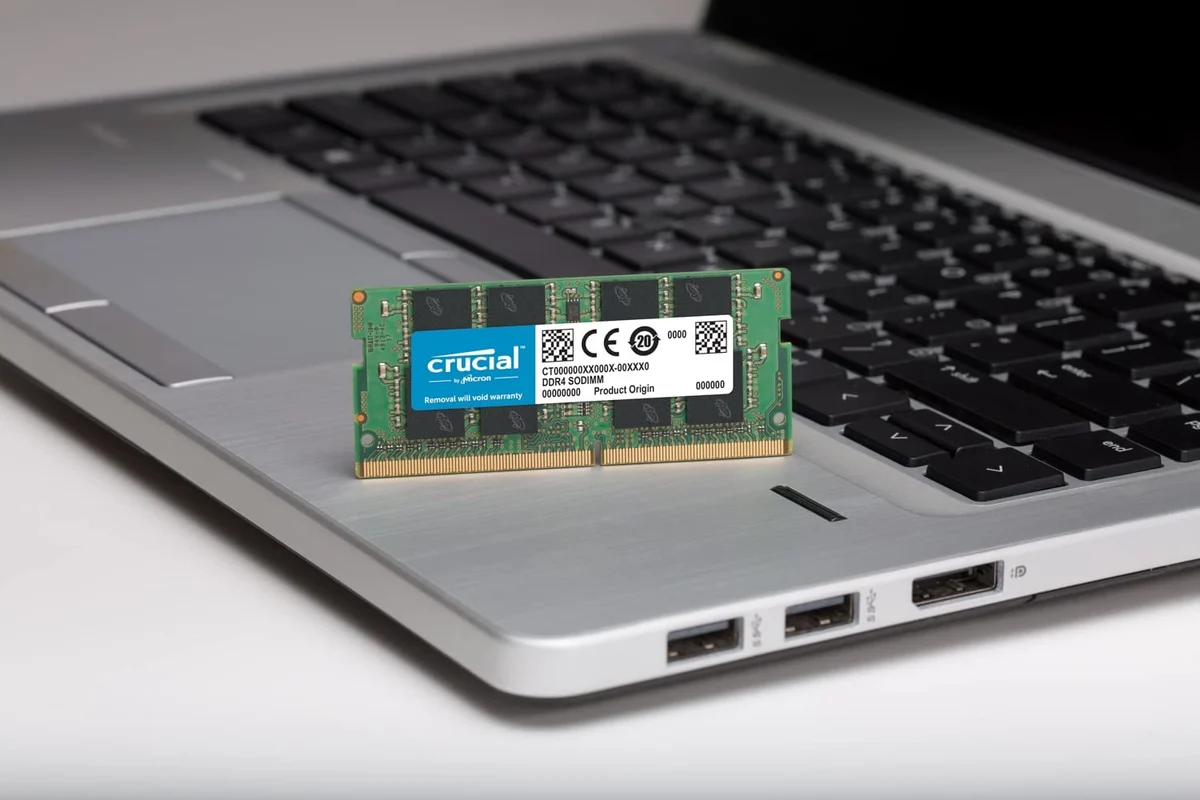
Laptop RAM Sizes Explained
RAM (random-access memory) holds data that the CPU needs right now, so programs start quickly and multitask without constant disk reads. When RAM fills up, the system falls back to slower storage through paging or swapping, which shows up as lag during tab switching, app launches, or timeline scrubbing in editors.
In 2026, the practical difference between 8GB, 16GB, and 32GB shows up most in browser-heavy workflows. A typical setup—Chrome or Edge with multiple tabs, a video call, a document editor, and a background music app—can push memory usage higher than many users expect, and it rarely behaves like a single number on a spec sheet.
RAM also interacts with the GPU and the OS memory manager. Some laptops share memory between CPU and integrated graphics, so the same “8GB” can feel tighter for graphics-heavy tasks than it does on a machine with dedicated VRAM. On macOS, memory pressure indicators and swap behavior can be more visible to users who check Activity Monitor, while Windows shows paging and commit behavior in Task Manager.
Common Pain Points And Traps
People often buy RAM like it is a one-time performance upgrade, then judge it only by boot speed. Boot time depends on storage and startup apps, while RAM size mainly affects sustained multitasking after the system warms up.
A second trap is assuming “8GB is fine” because a few apps run today. Memory usage grows with browser tab count, extensions, and the way sites cache media. A single tab with a web app that streams video or runs WebAssembly can consume far more memory than a static page, and the browser may keep old tabs “alive” for faster switching.
Supporting technologies matter. Storage speed affects how painful paging becomes, and the OS decides when to swap. If your laptop uses a slower SSD or has limited thermal headroom, sustained paging can turn into stutter that looks like CPU throttling, even when the CPU is not the bottleneck.
Upgrade constraints also change the decision. Many thin-and-light laptops solder RAM, so the “max RAM” is fixed at purchase. Even when upgrades are possible, mixing modules can be limited by motherboard rules, and some systems run in a reduced mode when memory channels are not matched.
How To Choose 8GB, 16GB, Or 32GB
Match RAM To Your Workload
Start by listing your top concurrent tasks. For office work plus light browsing, 8GB can work when you keep tab counts low and avoid heavy browser extensions. For mixed work—browser, chat apps, spreadsheets, and occasional photo or PDF editing—16GB usually reduces paging events enough that the laptop feels consistent across a workday.
For 32GB, the target is memory-hungry workflows: larger photo catalogs, heavier browser sessions with many tabs, local development environments, or running multiple virtual machines. If you do video editing, the limiting factor is often GPU and codec pipeline behavior, but RAM still affects how much you can cache and how many assets you can keep open without constant reloads.
As a side observation, I’ve seen people underestimate how quickly “just a few tabs” becomes 25+ tabs after a week of research, which is when 8GB systems start paging during normal scrolling.
Check Your Current Memory Pressure
Before buying, check what your current machine does under load. On Windows 11, open Task Manager and watch “Memory” during your typical session, then note whether “In use” approaches “Committed” limits. On macOS, Activity Monitor shows memory pressure; sustained green pressure usually means fewer swap events, while yellow or red indicates the system is struggling to keep working sets in RAM.
Run a repeatable test: open your usual browser session, start your main app, and keep it idle for 10 minutes. Then switch between apps for another 5 minutes. If you see frequent disk activity and the UI stutters during switching, you are likely hitting paging behavior rather than CPU-only limits.
For a quick tool-based check, Windows users can also inspect Resource Monitor for paging activity, though many people skip it because Task Manager already feels “good enough.”
Plan For Browser And Background Apps
Browser memory is the biggest swing factor for most buyers. Extensions, ad blockers, password managers, and tab management tools can change memory usage patterns. Some extensions also keep background pages active, so disabling nonessential extensions for a week can reveal whether your baseline is truly low-memory-friendly.
Background apps matter too: cloud sync clients, Teams/Slack, browser-based email, and PDF previewers can all hold caches. If you keep a lot of “always on” tools, 8GB becomes less forgiving, while 16GB often absorbs the overhead without constant swapping.
A mild frustration many users report: the laptop feels fine until a meeting starts, then audio/video plus chat pushes memory over the edge and the system starts swapping mid-call.
Account For Upgrade Paths And Channels
Look up the exact model’s RAM configuration and whether it is upgradeable. If RAM is soldered, buying 16GB when you later need 32GB forces a full replacement. If it is upgradeable, confirm supported capacities and whether the system uses one or two memory channels, since channel configuration affects bandwidth.
Also check whether the laptop supports the RAM speed it ships with. Some systems run at a lower speed when you install different modules, which can slightly affect performance in memory-bound workloads.
As an incidental detail, I often see buyers focus on “total GB” and ignore whether the laptop ships with one stick versus two, even though dual-channel can reduce latency for certain workloads.
Educational Case Examples
Student With Many Tabs
An anonymized student uses a laptop for coursework: a browser with 15–25 tabs, a note-taking app, a PDF reader, and a video lecture site. During study sessions, memory usage rises steadily, and on an 8GB configuration the system begins paging after the tab count grows. Switching to 16GB reduces the frequency of paging, so scrolling and tab switching stay responsive for longer stretches.
When the student adds a screen-sharing tool and a chat app for group work, the 8GB laptop shows more noticeable stutter. The 16GB laptop still slows at peak usage, but the pauses are shorter and less disruptive.
Developer With Local Tools
An anonymized developer runs a code editor, a browser, and a local environment with containers. With 8GB, the system frequently swaps when multiple services start, and the editor’s responsiveness drops during builds. With 16GB, the laptop handles typical sessions with fewer paging events, though memory spikes still occur when multiple containers run simultaneously.
With 32GB, the developer can keep more services and larger projects open without hitting swap as often. The improvement is not “instant speed everywhere,” but it reduces the number of times the system falls back to storage during peak workloads.
RAM Comparison Checklist
| Scenario | 8GB | 16GB | 32GB |
|---|---|---|---|
| Office + light browsing | Works with low tab count; paging risk rises with many background apps | Usually smooth for multitasking; fewer swap events | More headroom than needed for many users |
| Browser-heavy research | Frequent stutter when tabs/extensions grow | Better tolerance for 20–30 tabs depending on sites | Higher stability with many tabs and media-heavy pages |
| Photo editing | Often limited by RAM when catalogs get large | Fewer reloads; smoother timeline and previews | Helps with large catalogs and parallel apps |
| Local dev / containers | Swap spikes during builds and multi-service runs | Handles typical setups with fewer paging events | More room for concurrent services and larger projects |
Decision checklist you can use before checkout:
- List your top 3 apps and estimate how many you run at the same time.
- Check current memory usage during a normal day, not during a fresh boot.
- Count browser tabs and extensions that stay active for hours.
- Confirm whether RAM is upgradeable on the exact laptop model.
- Pick the smallest RAM size that keeps memory pressure low during your busiest hour.
Common Mistakes To Avoid
Buying 8GB because a spec comparison shows “enough” for one app ignores the way browsers and background services accumulate memory over time. A laptop that feels fine for 30 minutes can still page heavily after several hours of multitasking.
Another mistake is treating RAM as the only factor. A fast SSD reduces the pain of paging, while a slow SSD makes the same RAM size feel worse. CPU and GPU also affect responsiveness, so a stutter might come from thermal throttling or graphics rendering rather than RAM exhaustion.
Some buyers also misread “free memory” numbers. Operating systems cache data aggressively, so low “free” memory does not automatically mean you are out of RAM; memory pressure and paging behavior matter more.
Finally, people sometimes assume that upgrading RAM guarantees better performance in every workload. If your bottleneck is GPU rendering, codec support, or single-thread CPU limits, extra RAM may not change the outcome much.
FAQ
Is 8GB Enough In 2026?
8GB can work for light office tasks and browsing when tab counts stay low and background apps are minimal. Memory pressure and paging behavior during your busiest hour determine whether it stays smooth.
Does 16GB Always Beat 8GB?
16GB usually reduces paging and improves multitasking consistency, especially with many browser tabs and chat apps. It does not fix performance limits caused by slow storage, thermal throttling, or GPU-bound workloads.
When Does 32GB Make Sense?
32GB fits workflows that keep large datasets in memory, run multiple services locally, or maintain heavy browser sessions for long periods. If your usage rarely approaches memory pressure, 32GB may not change day-to-day responsiveness.
How Can I Check My RAM Usage?
Use Task Manager on Windows to watch memory and paging-related activity, and use Activity Monitor on macOS to review memory pressure. Run your typical workload for 15 minutes, then compare behavior to a fresh boot.
Can I Upgrade Laptop RAM Later?
Some laptops allow RAM upgrades, while many thin-and-light models solder memory. Check the exact model’s service manual or manufacturer documentation before assuming you can increase capacity later.
Author's Insight
RAM size matters most through memory pressure and paging behavior, not through marketing numbers. In practice, browser-heavy workflows and background services drive many users into paging on 8GB systems, while 16GB often reduces those events enough to feel stable. 32GB tends to help when you run memory-resident tools together, such as local development stacks or large media catalogs.
Because laptop models vary in storage speed, thermal behavior, and whether RAM is upgradeable, the safest approach is to measure memory pressure on your current device and compare it to the laptop’s upgrade constraints. If you are buying new, confirm the exact configuration and test your expected workload pattern after setup.
As a small aside, I sometimes see people ignore OS version differences; Windows 11 builds and macOS releases can change memory management details, so your results may differ from someone else’s screenshots.
Key Takeaways
- 8GB often struggles with long multitasking sessions, especially with many browser tabs and background apps.
- 16GB typically improves consistency by reducing paging, which shows up as fewer stutters during app switching.
- 32GB helps when you run memory-heavy workloads together, but it may be wasted for light office use.
- Check memory pressure and paging on your current system, then confirm whether the laptop’s RAM is upgradeable.