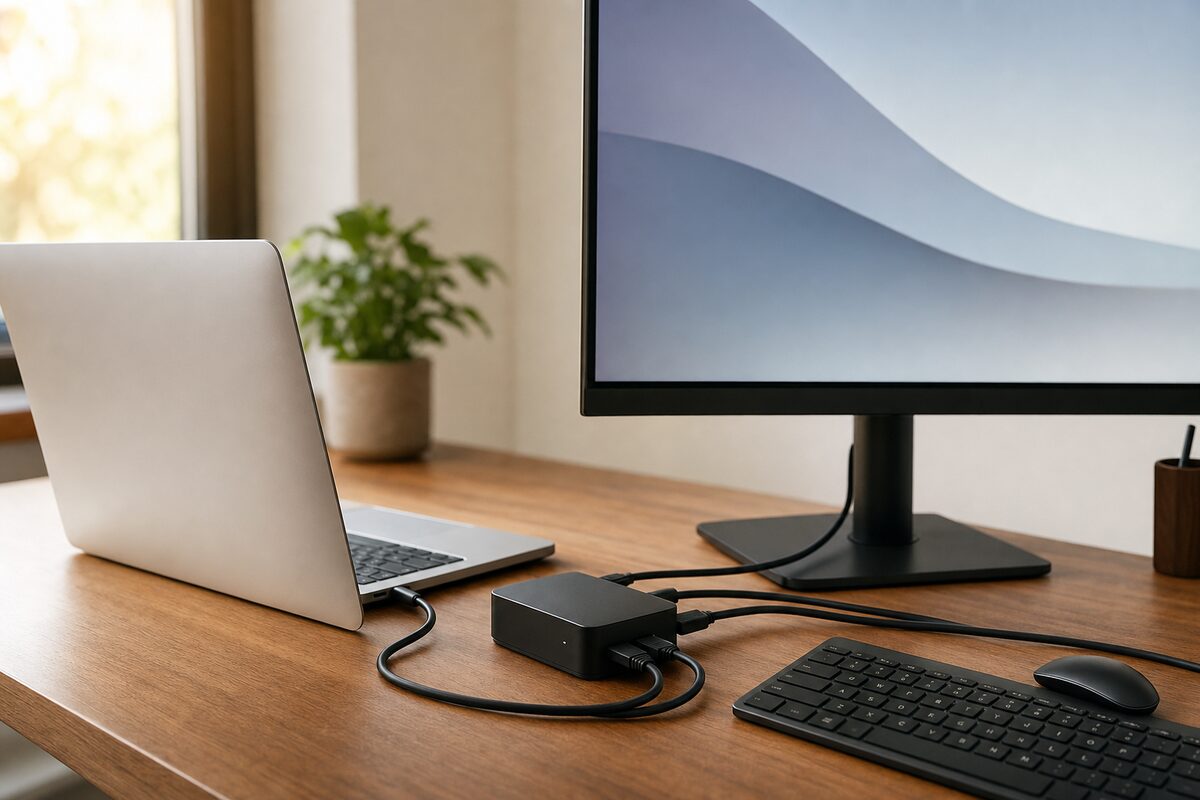
USB-C Changes In April 2026
In April 2026, the practical shift around USB-C on laptops centered on how manufacturers label and validate port capabilities for charging, data, and video over the same connector. The connector stayed USB Type-C, but the “what it can do” part became more consistent across product pages and dock compatibility notes. That matters because many real-world problems come from mismatched expectations: a cable that charges but won’t carry video, or a dock that works on one laptop model and fails on another.
USB-C is a physical connector standard, while the capabilities depend on the laptop’s internal USB controller, power delivery policy, and whether the port routes DisplayPort Alt Mode or uses a USB4/TBT-style tunneling approach. Around this period, more vendors aligned their documentation with the same underlying capability categories, which reduces guesswork when you read spec sheets. I noticed this most clearly when comparing accessory listings that previously used vague wording like “supports video” without stating the transport method.
For a concrete example, a laptop might advertise “USB-C charging” and “DisplayPort over USB-C,” yet still limit video to a single external display at a reduced refresh rate. That limitation can show up only after you connect a specific monitor model or a dock that expects higher bandwidth. The April 2026 change is less about a new connector and more about fewer surprises in how ports are described and tested.
Common Pain Points And Misreads
People often assume that any USB-C port behaves the same across brands, which fails because USB-C ports can differ in power limits, data lanes, and video support. A port may support USB Power Delivery (PD) for charging but still lack the Alt Mode wiring needed for external displays. Another frequent misread comes from cable marketing: a cable can be “USB-C” and still be limited to USB 2.0 speeds or a lower current rating.
Dock behavior adds another dependency chain. Many docks combine USB data, Ethernet, audio, and one or more display outputs, so they rely on the laptop’s ability to carry video and high-speed data simultaneously. If the laptop’s port is configured for USB 2.0 only, the dock may still power on and show Ethernet, while the display stays black. That pattern is common when the dock expects USB4 or DisplayPort Alt Mode but the laptop port is not wired for it.
There is also a power negotiation layer. USB-C PD uses negotiation between the charger and the device to select voltage and current, and laptops may cap charging power when they detect certain cables or when the system is under load. Some users see “slow charging” after switching from a 100 W charger to a 60 W one, then blame the port. The real cause is often the charger’s PD profile or the cable’s ability to handle the negotiated current.
Finally, firmware and driver versions can affect stability. A dock that works on one OS build may fail on another due to how the system enumerates USB controllers and video transport. This is why accessory vendors sometimes list “tested with” laptop models and OS versions, even when the connector type matches.
How To Choose Cables And Docks
Read Port Labels Like A Spec
Start with the laptop’s port documentation and look for explicit capability statements: charging wattage (often listed as “up to X W”), data speed class (USB 3.2 Gen 1/Gen 2/USB4), and video transport (DisplayPort Alt Mode or USB4/Thunderbolt-style tunneling). If the page only says “USB-C,” treat that as a physical connector, not a capability guarantee. When a vendor lists “supports 4K display,” check whether it states refresh rate and number of displays.
On some models, the same chassis includes multiple USB-C ports with different capabilities. One port may be wired for full-speed data and video, while another supports charging and basic data only. A quick aside: on a recent spec sheet I reviewed (model year 2026, firmware noted as “BIOS 1.2.3”), the manufacturer marked one port with a small icon for video output and left the other without it. That icon often correlates with Alt Mode support.
Match Cable Ratings To Your Use
For charging, confirm the cable supports the current needed for the negotiated PD wattage. For video and high-speed data, confirm the cable supports the required bandwidth class. Many “charging-only” cables omit the extra conductors needed for high-speed lanes, so they may charge a laptop but fail with a dock display.
Practical numbers help. If your laptop supports up to 100 W charging, a 100 W-rated USB-C PD charger and a cable rated for that power class are a safer match than a generic cable. For high-resolution displays, the bandwidth requirement depends on resolution, refresh rate, and whether the transport is DisplayPort Alt Mode or USB4 tunneling. If you see flicker or “no signal,” swap cables before assuming the dock is broken.
Test With One Known-Good Monitor
When setting up a dock, test the laptop with a single monitor directly connected to the laptop port first, then add the dock. This isolates whether the laptop port supports the display transport you need. If direct connection works but dock output fails, the issue often sits in dock bandwidth allocation, cable quality, or the dock’s expected video mode.
Use a repeatable test sequence. Connect monitor → confirm resolution and refresh in the OS display settings → then connect the dock. If the dock is USB-C to dual HDMI, verify whether it uses DisplayLink-style USB graphics or native DP/Alt Mode. Those two approaches behave differently under power saving and sleep states.
Plan For Sleep, Replug, And Firmware
Dock setups frequently break after sleep because the laptop re-enumerates USB controllers and the dock must re-negotiate video and power. If your workflow depends on waking the machine and keeping displays alive, check for firmware updates for both the laptop and the dock. Some vendors publish dock firmware tools; others require updating through a vendor app.
A mild frustration many users hit: the docs say “hot-plug supported,” but the first wake after sleep still blanks the display for 10–30 seconds. That delay can be normal while the system reinitializes the video transport. If it never recovers, the dock may be incompatible with the laptop’s port configuration.
Educational Case Examples
Case 1: Charging Works, Video Doesn’t
A buyer connects a USB-C dock to a laptop that charges over USB-C but shows no external display. The dock’s Ethernet lights up, which suggests the USB data path is alive. The monitor stays black because the cable used between laptop and dock supports charging but not the high-speed lanes needed for DisplayPort Alt Mode. Replacing the cable with a higher-spec USB-C cable restores video, and the buyer confirms the laptop port label mentions video support.
In this scenario, the key evidence is the “Ethernet works, display doesn’t” symptom. That pattern points to partial functionality rather than a dead dock. It also shows why cable selection matters even when the connector shape matches.
Case 2: Dual Displays Drop To One
An office setup uses a USB-C dock with two HDMI outputs. On one laptop model, both monitors run at 1080p; on a second laptop model, only one monitor activates, or both activate at reduced refresh. The second laptop’s port documentation states “single external display support” for that USB-C connector. Switching to a different port on the laptop, or using a dock that supports the laptop’s stated transport mode, restores the expected behavior.
This case illustrates a common dependency: the laptop’s port wiring and bandwidth allocation determine how many displays can be carried. The dock alone cannot override a laptop’s port limitations.
Smart Buying Checklist
| What You Need | What To Look For | Common Failure | Quick Fix |
|---|---|---|---|
| Fast Charging | Laptop “up to X W” + PD charger + cable rated for that power | Slow charge under load | Use a higher-watt PD charger and a rated cable |
| External Display | Explicit video support for that port (DP Alt Mode or USB4 tunneling) | Black screen on dock | Test direct monitor; swap to a higher-spec cable |
| Dual Monitors | Laptop states number of displays per port and resolution/refresh limits | Second monitor mirrors or drops | Use a different port or a dock matching the stated transport |
| Sleep/Wake Stability | Dock firmware notes + laptop BIOS/driver version compatibility | Display blanks after wake | Update firmware; replug; test with one monitor first |
If you want a step-by-step checklist for a new setup: confirm the laptop port’s charging wattage and video transport, choose a cable rated for both power and high-speed data, test a single monitor directly, then connect the dock and verify resolution/refresh in the OS display panel. That sequence reduces the number of variables you have to debug.
Common Mistakes That Waste Time
One mistake is buying a dock based on connector shape alone. USB-C docks vary widely in whether they rely on native display transport or USB graphics, and the laptop port must match the dock’s expectations. Another mistake is assuming that a “USB-C to HDMI” adapter works for every laptop port. Some adapters depend on DisplayPort Alt Mode, so they fail when the laptop port lacks Alt Mode wiring.
People also underestimate cable length and quality. A longer cable can reduce signal integrity for high-speed modes, which can show up as intermittent flicker or audio dropouts. Swapping to a shorter cable often fixes issues that look like driver problems.
Another frequent error is ignoring which USB-C port you used. Laptops sometimes route different ports to different controllers, so one port supports video and another does not. If you test only one port, you may conclude the dock is incompatible when the laptop simply needs a different connector.
Finally, users sometimes skip firmware updates because the dock “works today.” Sleep-related blanking and enumeration glitches often correlate with specific BIOS or dock firmware versions, and vendors sometimes fix those behaviors in later releases. If you see repeated failures after wake, checking the vendor’s release notes for your exact dock model can save hours.
FAQ
Does Every USB-C Port Charge?
Many laptops charge over USB-C, but not every USB-C port supports charging. Check the laptop manual or port icons for “power delivery” and the maximum wattage for that specific port.
Why Does My Dock Power On But No Display?
Ethernet and USB peripherals can work while video fails when the cable lacks high-speed capability or when the laptop port lacks DisplayPort Alt Mode/USB4 video routing. Test with a direct monitor and a higher-spec USB-C cable.
What Cable Rating Matters Most?
For charging, match the PD wattage rating to your laptop’s “up to X W” requirement. For video and fast data, use a cable rated for the bandwidth class your setup needs; charging-only cables often omit the lanes required for display.
Can One Dock Support Dual Monitors On All Laptops?
No. Dual-monitor support depends on the laptop port’s display transport and bandwidth allocation. Some ports support only one external display even when the dock has two HDMI outputs.
Will Firmware Updates Fix USB-C Dock Issues?
Sometimes. Dock firmware and laptop BIOS/USB drivers can change how devices negotiate power and video after sleep. Check release notes for your exact dock model and laptop version before assuming hardware failure.
Author's Insight
USB-C problems on laptops usually trace back to capability mismatches rather than the connector “breaking.” The most reliable approach is to treat each USB-C port as a separate specification: charging wattage, data speed class, and video transport method. Cable quality matters because some cables carry power but not the high-speed lanes required for display and USB4-class data. When setups fail after sleep, firmware and enumeration behavior often explain the pattern, so testing with one monitor and one port reduces uncertainty.
Key Takeaways
- USB-C is a connector; laptop port capabilities decide charging power, data speed, and whether video works.
- Use port-specific documentation and look for explicit video transport and maximum charging wattage.
- Choose cables rated for both PD charging and the bandwidth needed for display and high-speed data.
- Test direct monitor first, then add the dock to isolate whether the issue is cable, port, or dock transport.
- For sleep/wake blanking, check dock firmware and laptop BIOS/driver notes tied to your exact models.